
Class macro
Knight Online Warrior Macro
Hector presses your warrior's attack skill with a combo type like Fır Fır, at the speed you choose. Echo Combo sits on its own key and can skip skills that are on cooldown.
When your HP drops or you take a debuff, Auto Shield swaps your weapon for a shield and puts the weapon back once the danger passes. Auto Descent casts descent on a party member or your selected target, and HP Booster and your buffs come from the support slots on their own.
What Hector does
 Skill Combo
 Echo Combo
 HP Booster
 Auto Descent
 Auto Shield
- Auto Support

 Auto Pot
Contents
Auto Attack
In the program: Bot settingsMacro
Presses your combo while the bot runs. You pick the combo, its skills and its speed. Combos differ by class; find yours below. Auto Key, which every class has, presses the skills you put in its slots in order, and can scan them when the bot cannot read your skill bar.
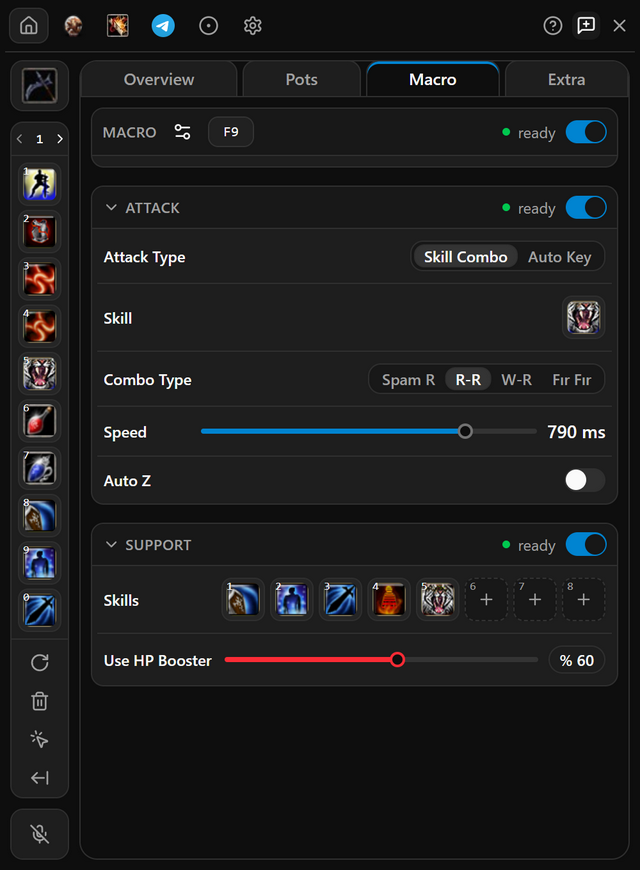
- Open Macro and pick Skill Combo under Attack Type.
- Right-click your attack skill on the skill bar; the combo presses one skill. The echo combo has a key of its own on the Extra tab.
- Pick a Combo Type, such as Fır Fır, and set Speed. A lower number presses faster.
- Switch on Attack at the top of the group.
- When it works
- While the bot runs, the Attack header reads running.
- If it does not
- A skill with an amber dot is not on your skill bar and cannot be pressed. Put it on the bar and reload skills.
Special Modes
In the program: Bot settingsExtra
Special combos for your class. They work while the bot lock is open; the macro mode does not have to be started.
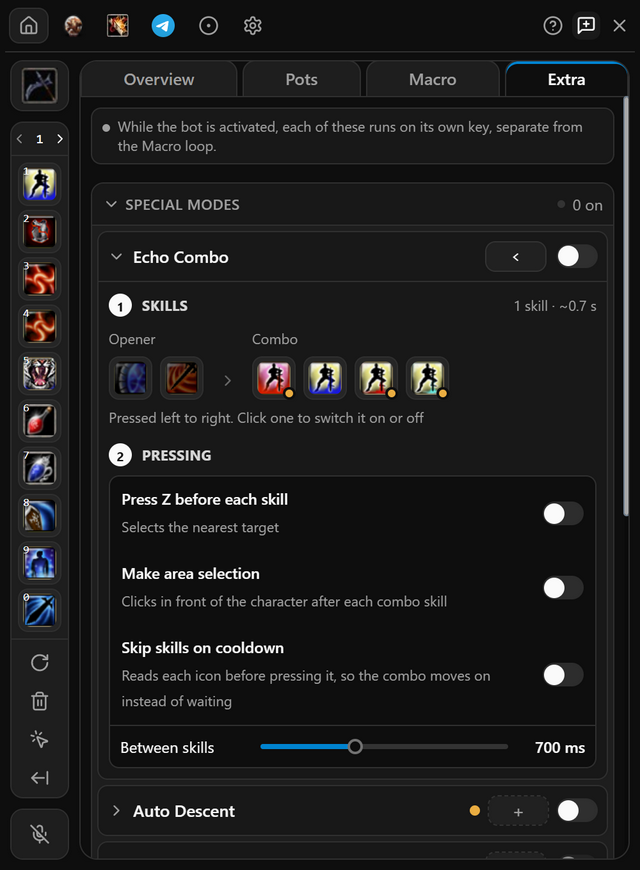
- Open Extra and click your combo under Special modes to unfold it.
- Click its empty key box and press the key you want.
- Click a skill in the combo to leave it out.
- Switch the combo on, then press its key in the game.
Your class's special modes
- WARRIOR
Echo Combo. Switch on Skip skills on cooldown so the combo reads each skill’s cooldown. To aim Descent at a party member, click Descent under Opener, press Read party and click their number under Descent target. Auto Descent uses the same target.
- When it works
- The combo shows in the Extra list on the Overview tab, with its key and a green dot.
- If it does not
- The switch will not turn on until a client is connected, a key is set and the skills in the combo are on your skill bar.
Auto Descent
In the program: Bot settingsExtra
Casts Descent on a party member, or on your selected target, on a key of its own or by itself when your HP drops or a debuff lands.
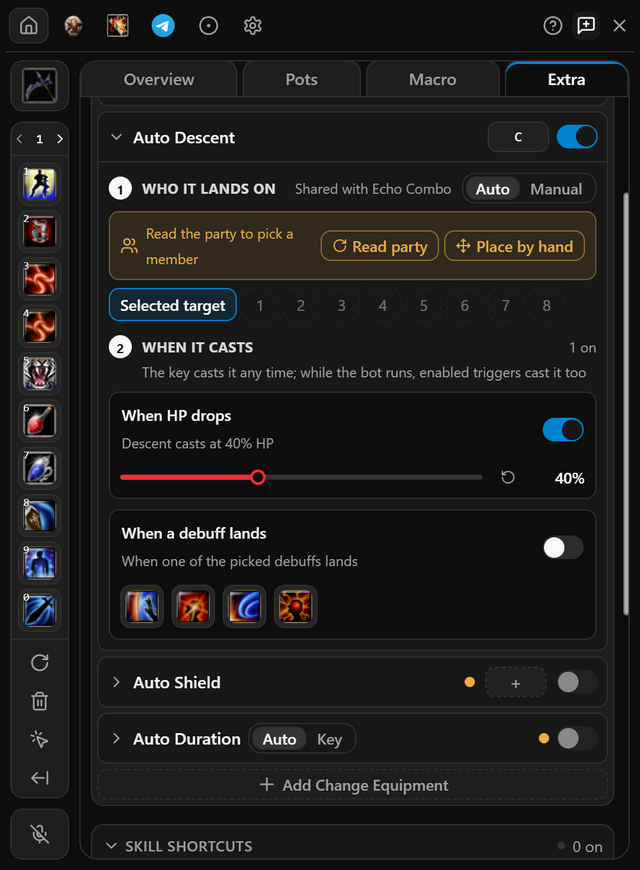
- Put Descent on your skill bar. Open Extra and click Auto Descent to unfold it.
- Under Who it lands on, keep Selected target, or press Read party and click the member’s number.
- Switch on When HP drops and drag it to your line, or When a debuff lands and click the debuffs.
- To cast it by hand as well, set its key. Then switch Auto Descent on.
- When it works
- It shows in the Extra list on the Overview tab, with a green dot.
- If it does not
- No party found? Pick Manual under How the party member is found, press Place point and click your party member’s name.
Auto Shield
In the program: Bot settingsExtra
Swaps your weapon for a shield when you are in danger, and back again once it passes.
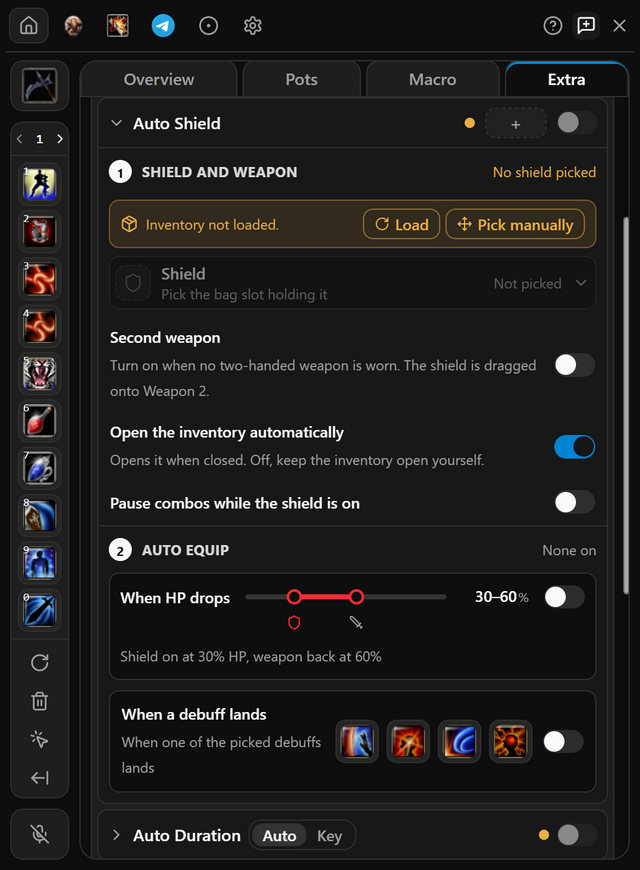
- Open Extra, click Auto Shield to unfold it, and press Load to read your bag.
- Under Shield, pick the bag slot your shield is in.
- Under Auto equip, switch on when it swaps: When HP drops or When a debuff lands. With HP, drag the two handles: the shield goes on below the first and the weapon comes back at the second. A priest can also shield While healing or While a support skill casts; these cover the heal and curse keys under Skill shortcuts too, and the shield button on a key’s row lets that one key cast with the weapon.
- Switch Auto Shield on. A key is optional, for swapping by hand. To stop attacking while the shield is on, switch on Pause combos while the shield is on; the attack picks up again once the weapon is back.
- When it works
- It shows in the Extra list on the Overview tab, with a green dot.
- If it does not
- An amber dot beside its key box means it has no key and no trigger yet. When HP drops also needs your bars read; press Read bars on the note it shows.
Auto Support
In the program: Bot settingsMacro
Keeps your buffs up while the bot runs. Each slot is cast again as it runs out or comes off cooldown.
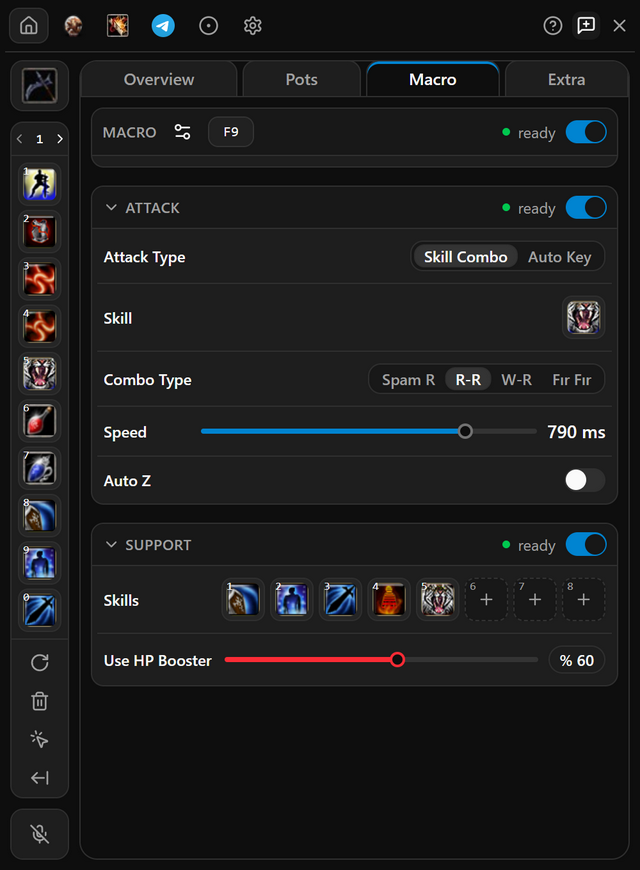
- Open Macro and right-click each buff or scroll on the skill bar. It lands in the first free Support slot.
- Drag slots to change the order. Ctrl-click a slot to empty it.
- Switch on Support at the top of the group.
For your class
- WARRIOR
Put HP Booster in a Support slot, then set Use HP Booster to the HP percentage it is used at.
- When it works
- While the bot runs, the Support header reads Running.
- If it does not
- A slot with an amber dot holds a skill that is not on your skill bar. Put it there and reload skills.
Questions
When does Auto Shield put the shield on?
When your HP falls below the first level you set, or when you take a debuff you picked; the weapon goes back on once HP reaches the second level. You can also have combos pause while the shield is on and pick up where they left off when the weapon returns.
Can descent go to a party member?
Yes. On the Auto Descent card, press Read party and click the member's number, or leave it on Selected target. Descent fires when your HP drops, when you take a debuff, or when you press its key.
Is HP Booster pressed automatically?
Yes. Put HP Booster in a support slot and drag the Use HP Booster slider to the HP percentage it should fire at.
Pricing
Pick the plan that suits you
Every plan includes all of the program's features. After payment, your one-time token is sent to your email address; use it in the app to create your account or extend your time.
Trial
Free
Three days
The code is emailed to you, and entering it in the app starts your three days. No payment is taken and no card details are asked for.
Weekly
33% off7 days
100TL
PurchaseWas 150 TLMonthly
20% off30 days
400TL
PurchaseWas 500 TL3 months
28% off90 days
900TL
PurchaseWas 1250 TL
Features shared by every plan
- Every feature unlocked: combos, auto pot, minor, heal, item upgrade and Telegram alerts.
- All five classes, from assassin to mage.
- Every update released while your plan is running.
- Your days start when you activate your token, not when you pay. Buy again before it runs out and the new days are added to the days you have left.
Pay through Shopier. Your card details are never used on this site.
For other payment methods, contact us: support@hectormacro.com