
Guide
Explore every feature in detail
Do the setup first, then open the page for your class and the features you use.
Your first run
Four steps from a fresh install to a bot that attacks.
- Connect the client
Connect your client with Connect or Choose on the setup card.
Done when the first row gets a tick.
- Load your skills
Load all your skills with Load Skills on the setup card.
Done when the card reads Ready.
- Open the bot lock
Open the bot lock by pressing Del.
Done when the line under it reads All modes are available.
- Switch on features and set a hotkey
Set up the features you want to use and assign a hotkey.
Done when your hotkey makes the Macro box read running.
Contents
Setup
Do these five in order. Each one needs the one before it.
Install and Sign In
Gets Hector onto your computer and into your account, with the token from your purchase or a free trial code.
- Download Hector and run the installer.
- Press Sign up and enter your email, a password, and in Token the token we emailed you or your 6-digit free trial code.
- From then on, sign in with your email and password.
- When it works
- A small strip opens on your screen. That is the widget, and its Hector logo opens the menu. The first time, a setup tour walks you through the rest; ? at the top of the menu reopens it.
- If it does not
- Still signed in on another computer? Signing in here signs that one out.
The Widget
The small strip that stays on screen after you sign in. It starts and stops things without opening the menu.
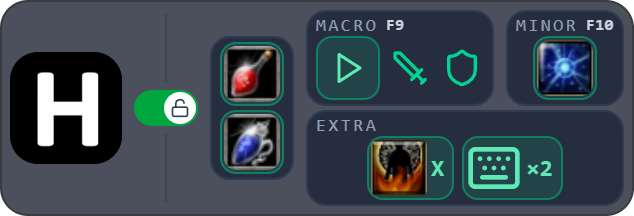
- Click the Hector logo to open or close the menu. Drag the logo to move the strip.
- The switch at the left end of the strip is the bot lock, the same as Del. The pot pictures switch auto pot on and off; a lit ring means on.
- Macro and Minor each have a start button, with its start key printed on its bottom edge. It starts only while the small switch at the right of the card’s name is on. The pictures beside the Macro start switch its loops on and off, even while it runs; a faded picture is off.
- Right-click the Hector logo to minimize Hector or close it.
- When it works
- Once a special mode or shortcut is on, an EXTRA card joins the strip with its key. A lightning mark on a slot means it also fires on its own, on a debuff or low HP for example. A red slot is on but cannot fire, such as a shortcut whose skill is not on your bar.
Connect the Client
In the program: Bot settingsOverview
Hector plays on the game window you connect. Nothing else in this guide works until this is done.
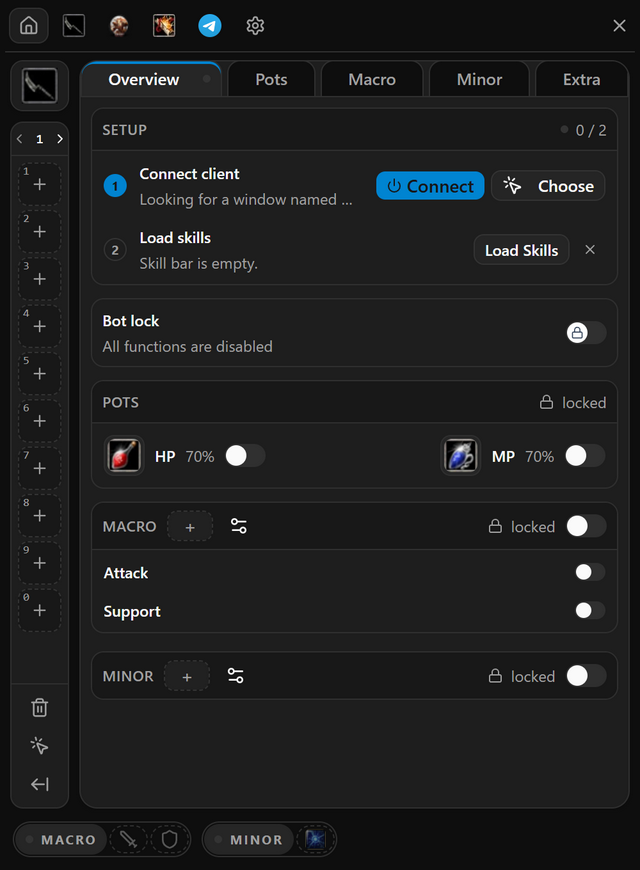
- Start Knight Online and log in with the character you want Hector to play.
- Click the Hector logo on the widget to open the menu. Until setup is done, it opens on Overview.
- Press Connect on the first row of the setup card.
- If your game is not found, press Choose, then middle-click or Ctrl+right-click the game window.
- When it works
- The first row of the setup card gets a tick and shows your client.
- If it does not
- Hector remembers the window you pick with Choose, so next time Connect finds it on its own.
Auto Read Skill Bar
In the program: Bot settingsOverview
Hector needs to know which skill sits on which key. It learns that by reading the skill bar in your game.
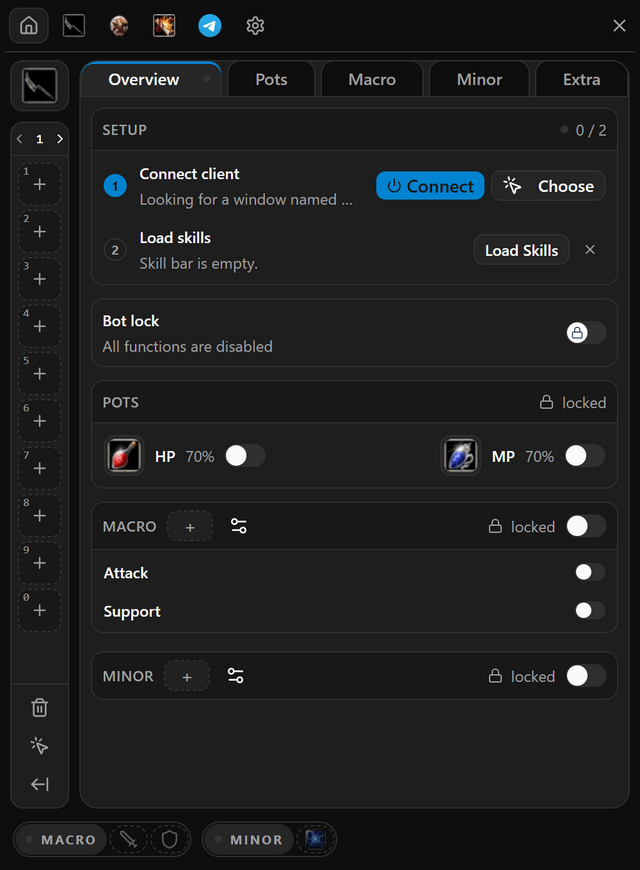
- In the game, put every skill and pot you use on your skill bar.
- Press Load Skills on the second row of the setup card.
- Compare the skill bar down the left side of the menu with the one in your game.
- Missing one? Press the arrow under that bar to open the skills list, then right-click the skill to add it. Ctrl-click a skill on the bar to remove it.
- When it works
- The setup card reads Ready and counts your skills.
- If it does not
- Changed your skill bar in the game? Press Reload skills on the setup card, or the reload button under the skill bar, to read it again.
Start and Stop the Bot
In the program: Bot settingsOverview
One key starts everything in the Macro box, and the same key stops it. The bot lock above it has to be open first. The same key and switch sit at the top of the Macro tab as well.
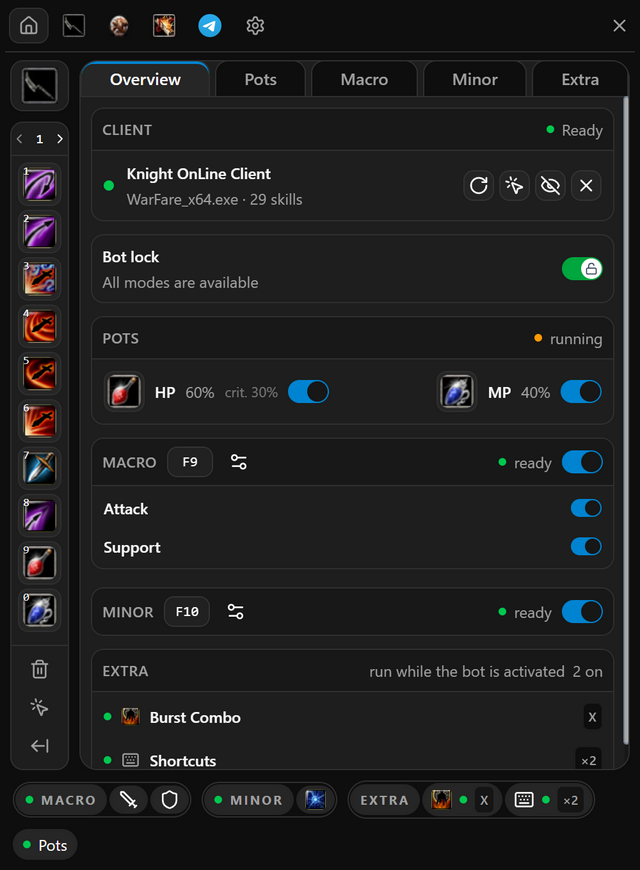
- Switch on Bot lock, or press Del. The line under it changes to All modes are available.
- On the Macro box, click the empty key box and press the key or mouse button you want.
- Switch the Macro box on, then switch on what the key should start: Attack, Support and, on a priest, Heal.
- Go to the game and press your key. Press it again to stop.
- When it works
- While the bot runs, the Macro box reads running and the Macro button on the widget turns amber.
- If it does not
- The key does nothing while the Macro box, or every row inside it, is off. Switch them on and press it again.
Classes
 Assassin MacroAsas Combo, Styx and Burst Combo, auto minor.
 Archer Macro3-5 Combo, Skill Combo, Blow Arrow, auto minor.
 Warrior MacroSkill Combo, Echo Combo, auto descent, auto shield.
 Priest MacroAuto heal, party heal, party buffs, skill combo.
 Mage MacroStaff Combo with manes, Area Combo, custom combos.
Features
- Auto PotionHP and MP pots with separate limits.
- Auto MinorSmart minor for farming and PK, on its own key.
- Auto UpgradeUpgrades the items you pick, as many times as you set.
- Multi ClientUp to five clients, one login.
- Telegram AlertsA message when you die, run out of pots or break a weapon.
- Change EquipmentPuts on an item on a key, a debuff or low HP.
- Other FeaturesDuration, shortcuts, scripts, voice commands, profiles.